Resources · Domestic / Household services

How to set up BizlumoAI for household staff

Four simple steps for maids, cooks, nannies and drivers: attendance, monthly pay, advances and a cash pay register.

4 steps · About 15 minutes · Free for up to 10 employees

Household staff attendance and salary app

Families with a maid, cook, nanny or driver want a simple record of attendance, salary and advances, without a diary.

This guide shows how to set up BizlumoAI for household staff in four simple steps. It is free for up to 10 people.

Watch the full demo: BizlumoAI for a household

The whole setup in one video (11 min), from sign-up to the first payroll, step by step. Every step below is in it.

Demo video: Household Staff Attendance & Salary Setup

First, sign up as “Domestic / Household services”

Pick Domestic / Household services as your business type when you sign up. It switches on the right features and makes the usual staff groups for you. You can change all of it later in Settings.

Switched on for you

  • Loans and advances
  • Cash pay register

Staff groups made for you

  • Household staff

How to set up BizlumoAI for a household: the 4 steps

After you log in, a setup checklist stays in the corner of every page. Each step ticks itself when it is done, and clicking a step opens the right page.

  1. Add your first employee
  2. Log the first attendance
  3. Run your first payroll
  4. Invite a teammate
Step 1 of 4

Add your first employee

Go to Employees and click Add Employee. Type the name, email and a password for the BizlumoAI app. Pick the department and position. The staff group Household staff is picked for you. A gardener or part-time help can be paid by the day. Add the rest of your team the same way, or upload them all from an Excel or CSV file.

More in the user guide →
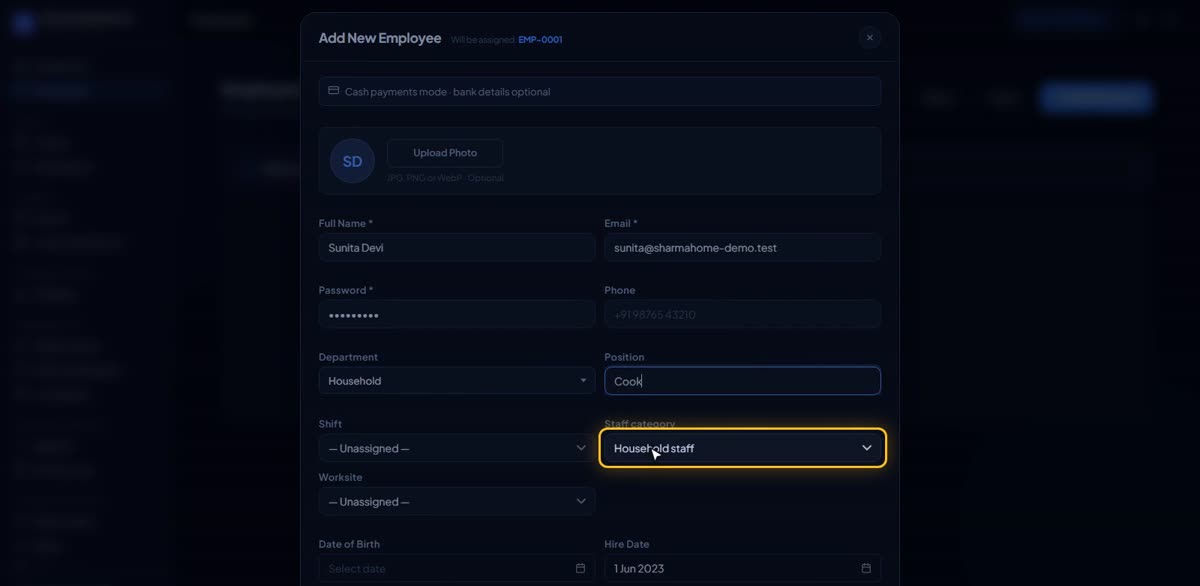
Add your first employee in BizlumoAI for a household
Step 2 of 4

Log the first attendance

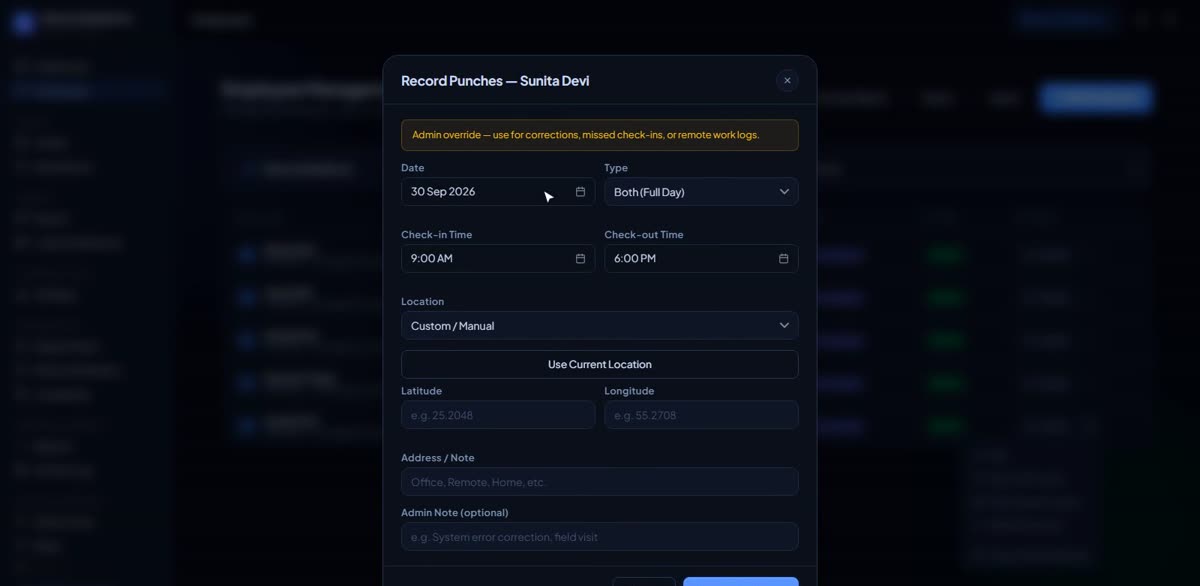
Staff check in from the BizlumoAI app on their own phone or on a tablet kept at home. The Attendance page shows who came in and when. You can also type a day in by hand: open the person on the Employees page and click Record Punches.

More in the user guide →
Log the first attendance in BizlumoAI for a household
Step 3 of 4

Run your first payroll

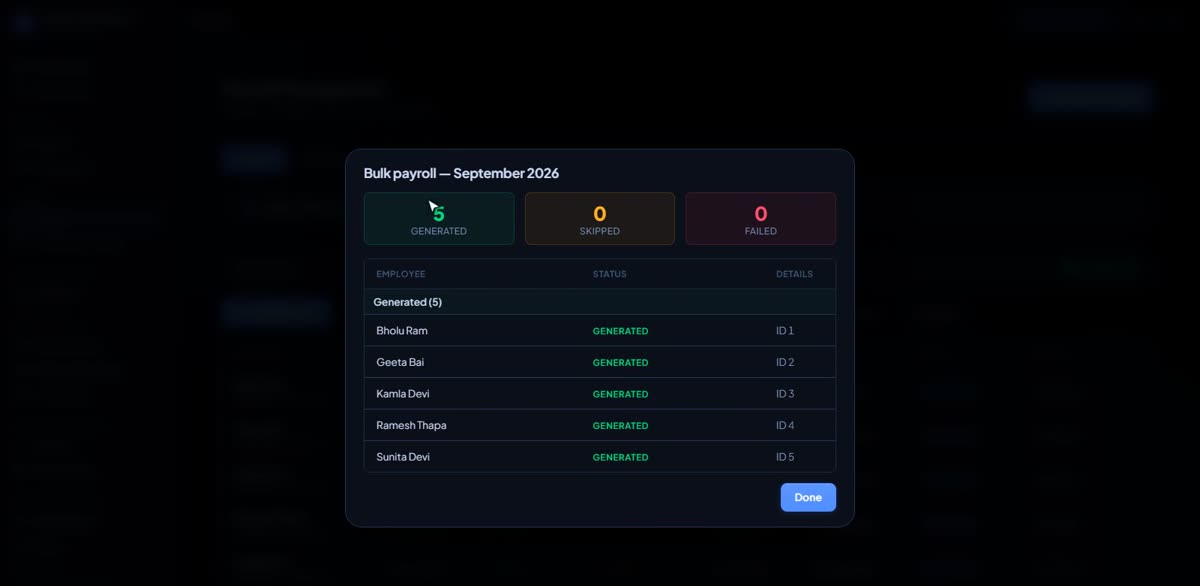
Go to Payroll, pick the month and click Generate All. Everyone’s pay is worked out from the days they worked, with any advance instalment taken off. Open any payslip to check it, then download them all, the bank file or the cash pay register.

More in the user guide →
Run your first payroll in BizlumoAI for a household
Step 4 of 4

Invite a teammate

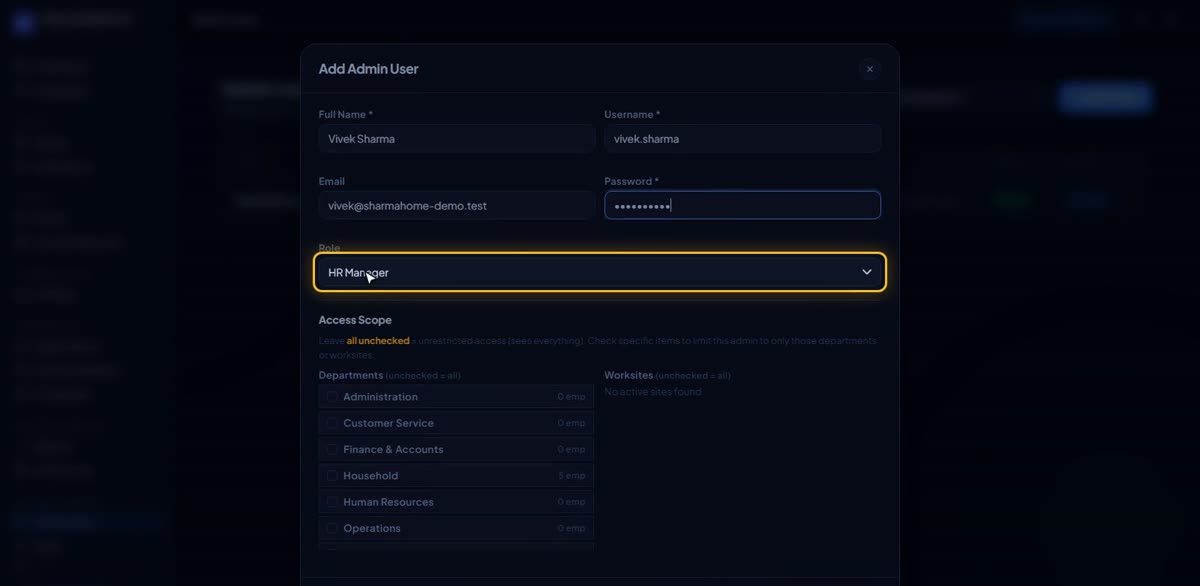
Go to Admin Users and click Add Admin. Type their name, a username, email and a first password, and pick a role. For example another family member who also looks after the staff. Each role sees only what it needs.

More in the user guide →
Invite a teammate in BizlumoAI for a household

Also useful for a household

Not part of the checklist, but most households use this every month.

Every month

Give a salary advance

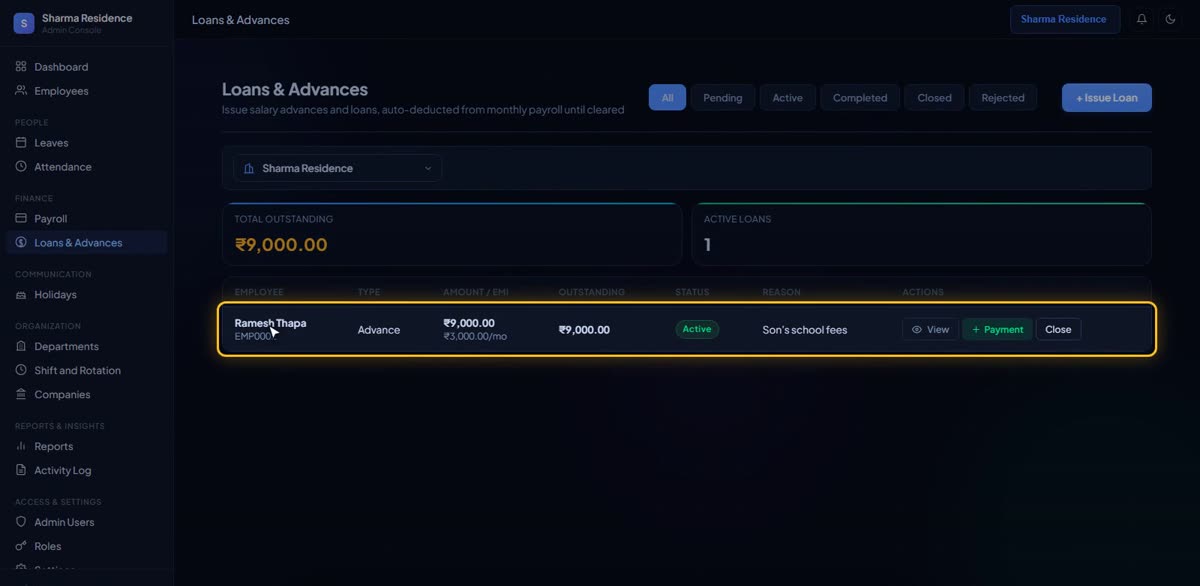
Go to Loans & Advances and click Issue Loan. Pick the person, the amount and how many months to pay it back. Each month’s instalment is taken off their salary by itself, and Outstanding shows what is left.

More in the user guide →
Give a salary advance in BizlumoAI for a household

Free for your first 10 employees

Free forever, not a trial. All features are included. No card needed. See all plans.

Start Free →

Common questions

Is this too much for a household?
No. A household gets only four steps and the features it needs.
We pay in cash.
The Cash Register prints everyone’s amount with a column to sign.
Is it free?
Yes, free for up to 10 people, with no card.

Read more: Attendance app · For small teams · Free plan

Setting up a different kind of business? See all setup guides →