Resources · Field service / Sales / Security

How to set up BizlumoAI for a field team

Six steps for sales, service and security teams: check-in from client sites or on the move, travel claims and bank transfer.

6 steps · About 25 minutes · Free for up to 10 employees

Field staff attendance and payroll software

Sales, service and security teams work at client sites and on the road, not at one office. They need to check in from where they are and claim travel costs.

This guide shows how to set up BizlumoAI for a field team in six steps: client sites, check-in from anywhere, bank transfer and travel claims.

Watch the full demo: BizlumoAI for a field team

The whole setup in one video (14 min), from sign-up to the first payroll, step by step. Every step below is in it.

Demo video: Field Team Attendance & Payroll Setup Guide

First, sign up as “Field service / Sales / Security”

Pick Field service / Sales / Security as your business type when you sign up. It switches on the right features and makes the usual staff groups for you. You can change all of it later in Settings.

Switched on for you

  • Several sites
  • Check-in from anywhere
  • Salary by bank transfer
  • Travel expense claims
  • Loans and advances

Staff groups made for you

  • Field staff
  • Office staff
  • Managers

How to set up BizlumoAI for a field team: the 6 steps

After you log in, a setup checklist stays in the corner of every page. Each step ticks itself when it is done, and clicking a step opens the right page.

  1. Add your first employee
  2. Add your work sites
  3. Log the first attendance
  4. Add bank details
  5. Run your first payroll
  6. Invite a teammate
Step 1 of 6

Add your first employee

Go to Employees and click Add Employee. Type the name, email and a password for the BizlumoAI app. Pick the department and position. The staff group Field staff is picked for you. Field staff get the conveyance allowance. Add the rest of your team the same way, or upload them all from an Excel or CSV file.

More in the user guide →
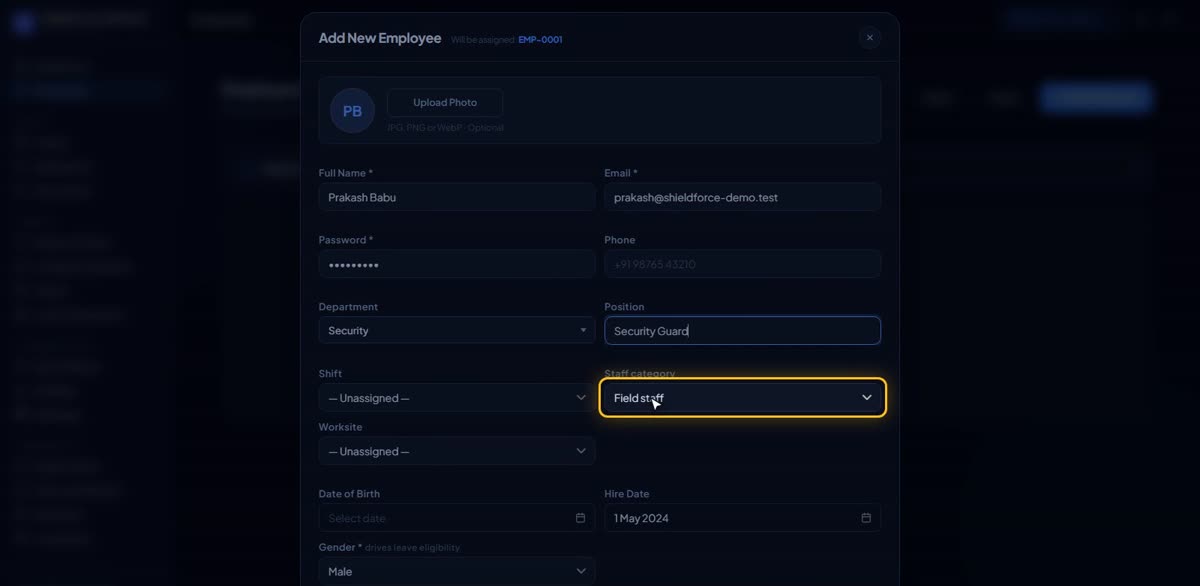
Add your first employee in BizlumoAI for a field team
Step 2 of 6

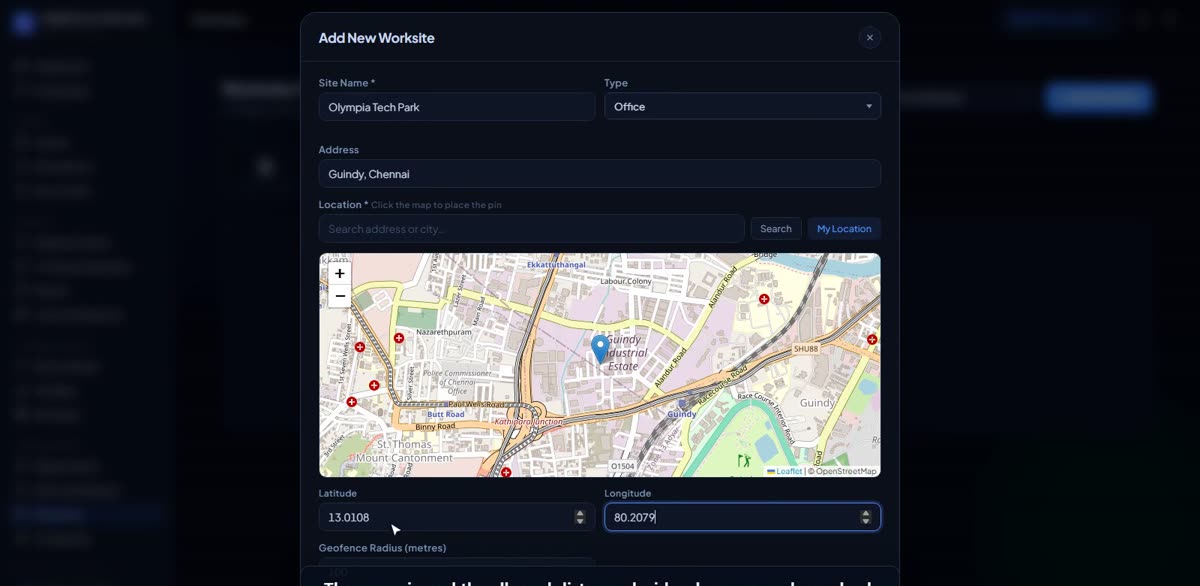
Add your work sites

Go to Worksites and click Add Worksite. Type the name and address of the client site, then place the pin on the map. Staff can check in only when they are near it, so nobody marks attendance from home. Add one for every client site.

More in the user guide →
Add your work sites in BizlumoAI for a field team
Step 3 of 6

Log the first attendance

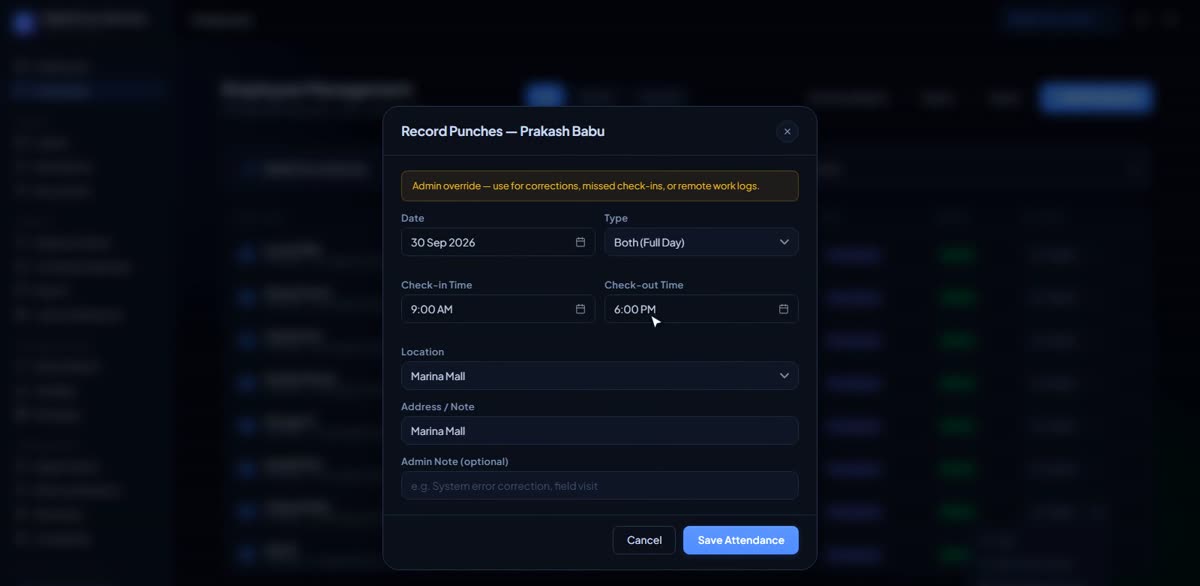
Staff check in from the BizlumoAI app on their own phone, from the client site or wherever they are, with the place saved. The Attendance page shows who came in and when. You can also type a day in by hand: open the person on the Employees page and click Record Punches.

More in the user guide →
Log the first attendance in BizlumoAI for a field team
Step 4 of 6

Add bank details

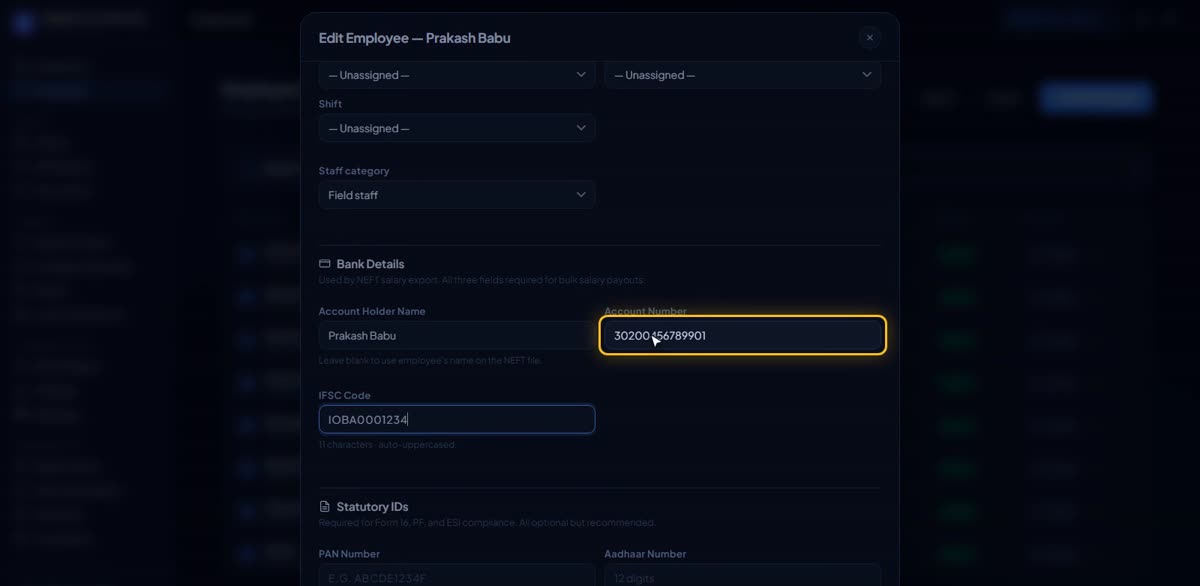
Open a person on the Employees page and click Edit. Type the account holder name, account number and IFSC, then save. Every month BizlumoAI makes one salary file for all staff to upload to your bank’s net banking.

More in the user guide →
Add bank details in BizlumoAI for a field team
Step 5 of 6

Run your first payroll

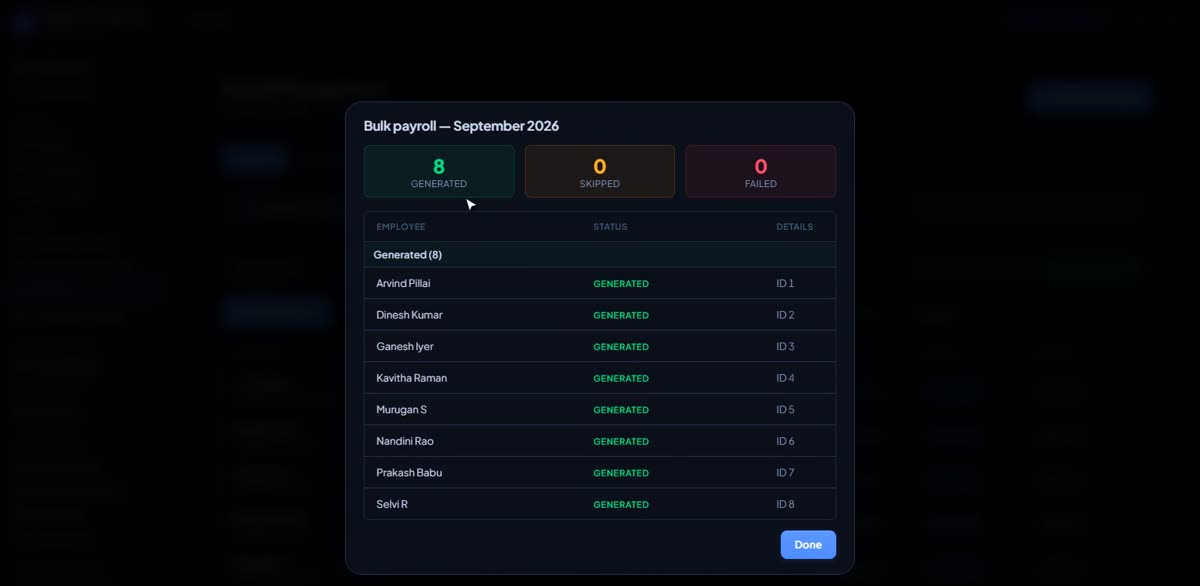
Go to Payroll, pick the month and click Generate All. Everyone’s pay is worked out from the days they worked, with allowances added. Open any payslip to check it, then download them all, the bank file.

More in the user guide →
Run your first payroll in BizlumoAI for a field team
Step 6 of 6

Invite a teammate

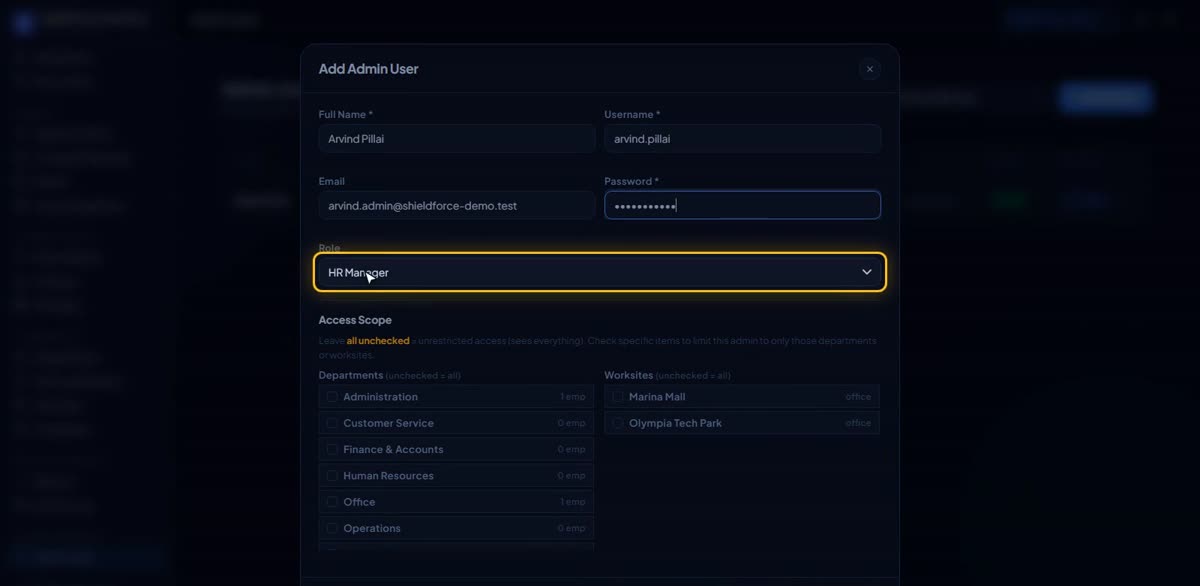
Go to Admin Users and click Add Admin. Type their name, a username, email and a first password, and pick a role. For example your operations head. Each role sees only what it needs.

More in the user guide →
Invite a teammate in BizlumoAI for a field team

Also useful for a field team

Not part of the checklist, but most field teams use this every month.

Every month

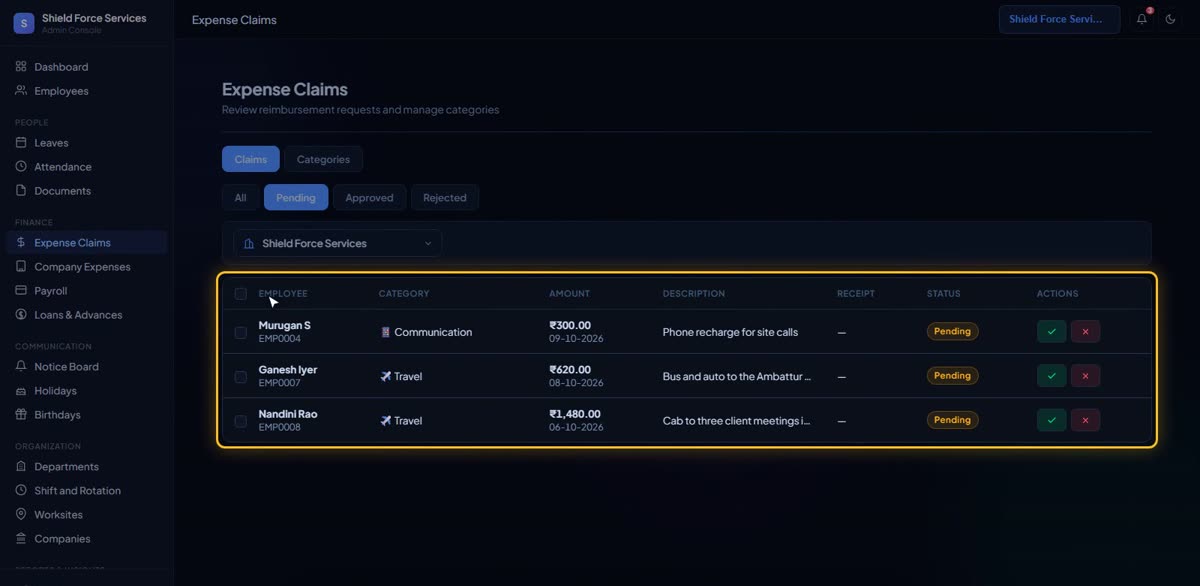
Approve expense claims

Staff send travel and visit bills from the app with a photo of the bill. They wait on the Expense Claims page. Click approve, and the person sees it on their phone straight away.

More in the user guide →
Approve expense claims in BizlumoAI for a field team

Free for your first 10 employees

Free forever, not a trial. All features are included. No card needed. See all plans.

Start Free →

Common questions

Our guards work at many client sites.
Add each client site. A guard can check in only when they are there.
Sales staff move around all day.
They can check in from anywhere, and the place is saved with the time.
How do travel claims work?
Staff send the bill from the app. You approve it, and they see it at once.

Read more: HR software for field employees · GPS attendance · Many sites in one place

Setting up a different kind of business? See all setup guides →